Approve Time Card
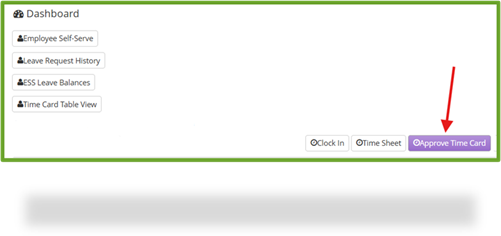
Approvers can VIEW/APPROVE/REJECT/EDIT/ADD Time Cards/Time Sheets in Approve Time Card from the Dashboard.
Step 1: Click Approve Time Card
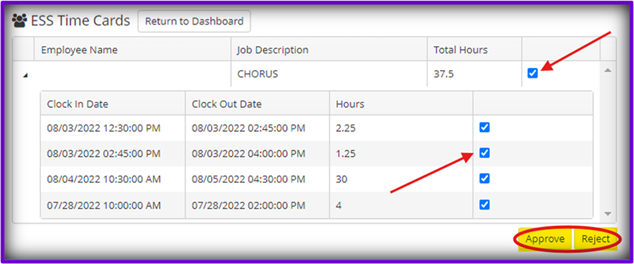
to APPROVE/REJECT
Step 2: Select the Desired Entry/Entries
Step 3: Review the Date/Hours/Etc
Step 4: Click Approve OR Reject as Desired
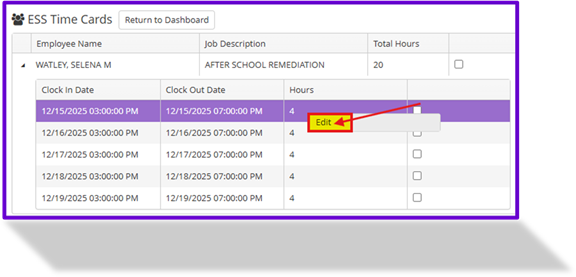
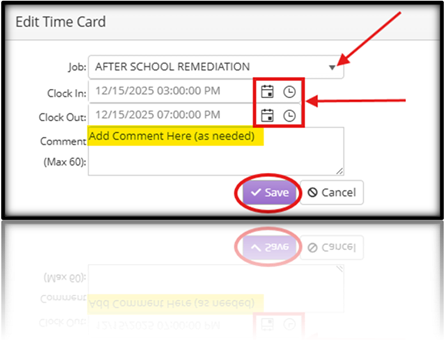
to EDIT a TIME CARD
Step 2: Select/Highlight/Click on the Entry
Step 3: Right Click on the Chosen Entry
Step 4: Click Edit
Step 5: Change the Desired Fields with Corrected Data (as needed)
Step 6: Enter Comment (as needed)
Step 7: Click Save
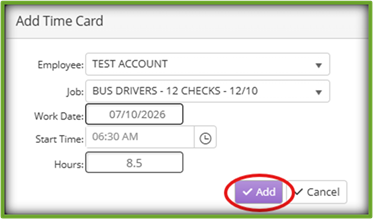
to ADD a TIME CARD
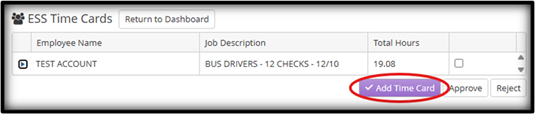
Step 2: Click Add Time Card at the BOTTOM RIGHT of the TABLE
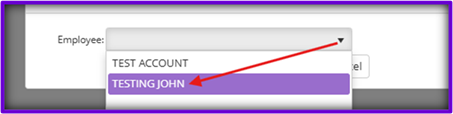
Step 3: Choose the Desired Employee from the Dropdown Menu
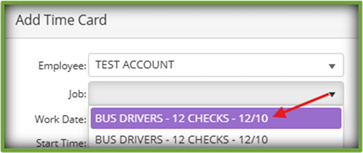
Step 4: Choose the Desired Job from the Dropdown Menu
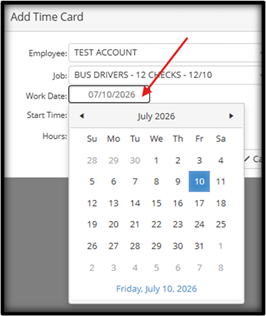
Step 5: Choose the Desired Work Date from the Dropdown Calendar
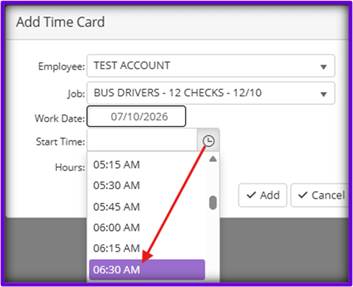
6: Choose the Desired Start Time from the Dropdown Clock
Step 7: Enter the Hours Worked in the Hours Field
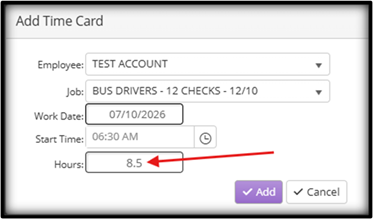
Step 8: Click Add