
Best Practices
- This process is recommended when adding/editing an individual deduction for existing deductions for employees
- This screen allows the user to add and/or edit employee payroll deductions
Add Deduction Description Master
Check to be sure that there is a Deduction Description Master for the deduction you need. If not, use this solution to add the Deduction Description. Add Deduction Description.
Add Deduction Description to Employee Record
The next step is to add that deduction to the employees' deduction screen.
- Go to Payroll - Personnel Demographics and select the employee.
- Then go to the Payroll tab at the bottom - then select Deductions.
- At the bottom of the screen, there is an add ("+") button and the following screen will open:
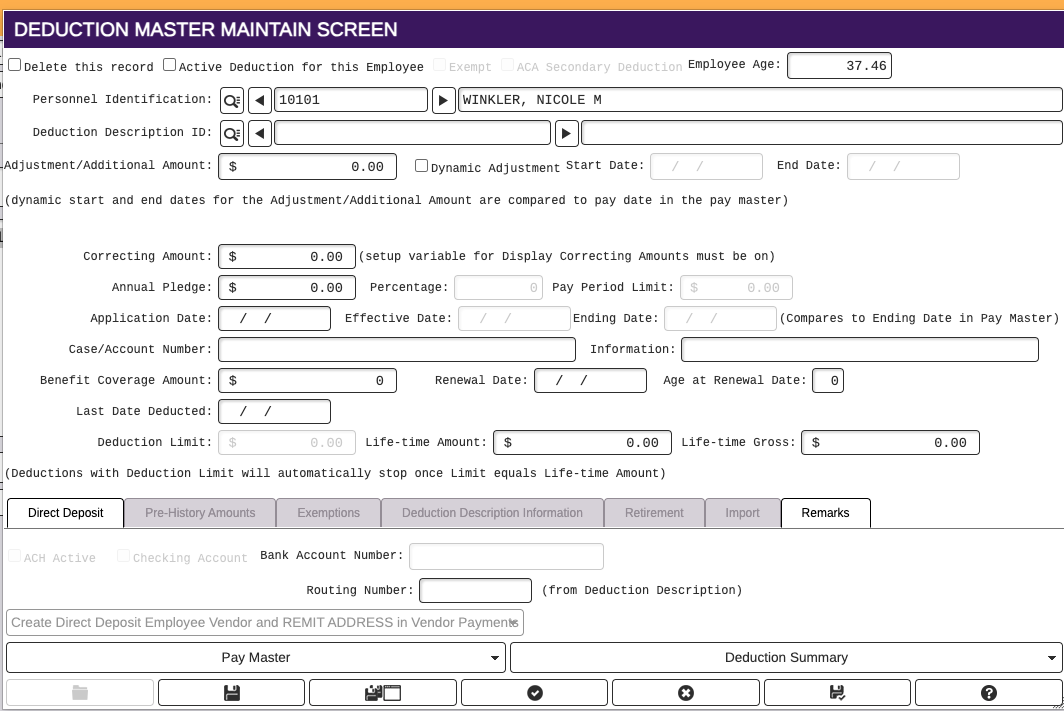
Using the magnifying glass, select the deduction description.
- In the adjustment/additional amount field enter only those amounts that will repeat every pay cycle without change.
- Dynamic adjustment is used when the deduction is only to be taken for a specific period of time. Once the boolean is set, the Start and End dates will enable, and these fields will need to completed. When selected, this deduction will only withhold for this employee if the dates listed include the pay date being processed. The deduction will no longer withhold after the End Date. Visibility is controlled by GSV.
- Correcting amounts field is for one-time changes to deductions. For example, if an additional month of premium is required, include the extra amount in the correcting amounts field. If a refund amount to an employee is required, add the amount of the refund as a negative in the correcting amounts field.
- Annual Pledge is used when the Compute Type on Deduction Description is Calendar Pledge or Fiscal Pledge, enter total amount pledged (per pay period amount is entered in the Adjustment/Additional Amount field); Deduction will stop when pledge amount is met for current calendar or fiscal year and will resume at start of next calendar or fiscal year.
- Percentage field is used when the deduction is set up as an employee elected percentage. This field will only be enabled when the deduction description is set up using a compute type that indicates an employee elected percentage.
- Pay period limit is used when there should be a limit on the amount withheld per pay period.
- Application Date is used for specific deductions based on requirements. One example is VRS Optional Life when employees are hired after the common date. It's also used for Benefit reporting.
- Effective Date and Ending Date is used when the start date is after the day that the deduction is added. Add a future ending date to stop the deduction. The ending date is compared to ending date in pay master. Visibility is controlled by GSV.
- Case/Account Number field is a text field where the case number and/or account number can be stored for reference. It does not print on the vendor check.
- Information field is a field for notes.
- Benefit Coverage Amount is an information field for benefit purposes.
- Renewal Date populates based on Benefit Renewal Date on the Deduction Description.
- Age at Renewal Date calculates automatically using the birthdate in personnel demographics and the renewal date.
- Last Date Deducted is the last payroll date that the deduction was taken.
- Deduction Limit will be enabled if the Deduction Description has the "use limits" flag set on the flags tab of the Deduction description. This field should contain the total amount to be paid by the employee and once the amount in the life-time amount field equals the amount in the Deduction Limit field, the deduction will no longer be included on payrolls
- Life-time Gross is the total gross for the lifetime of the deduction.
- Be sure to make the Deduction Description ACTIVE before you hit the SAVE button.
Additional tabs at bottom of Deduction Master Maintain Screen
Direct Deposit
This tab is completed if the Deduction Type is a direct deposit. Be sure to check the ACH boolean for every direct deposit deduction. Check the Checking Account boolean only if the account being deposited to is a checking account. If the deposit is being made to a savings account, do not check the checking account boolean. A Bank account number is required and the routing number should be pre-populated from the Deduction Description Master.

Pre-History Amounts
Populated at conversion if payroll detail is not available or not converted.

Exemptions
This tab is only used if the Deduction Description is set up as a Federal 2020 Deduction. If you scroll down on this tab, you will find fields labeled 2c thru 4c (same as the federal 2020 W-4 form). Fill in any amounts as they appear on the W-4 and save the information. 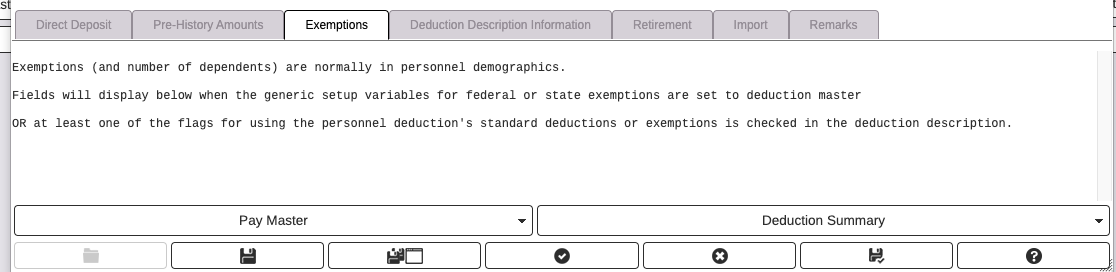

Adjustment/Additional Amount above corresponds to Form W4 Box 4c
Deduction Description Information
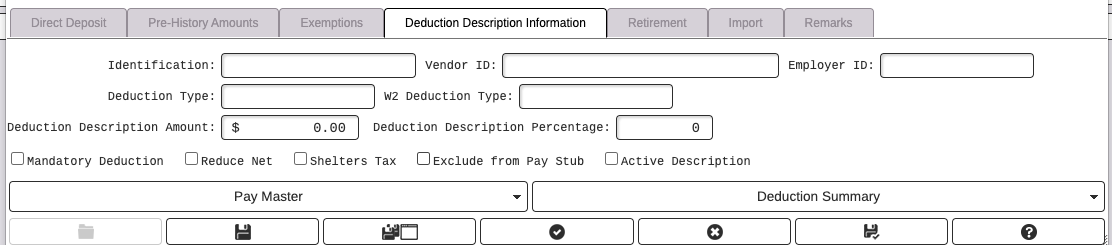
Deduction Description information tab includes details about how the Deduction Description is set up. You cannot change fields directly on this screen. If a change/correction is necessary, you would need to change the Deduction Description master and that change would affect all employees who have this deduction.
Retirement
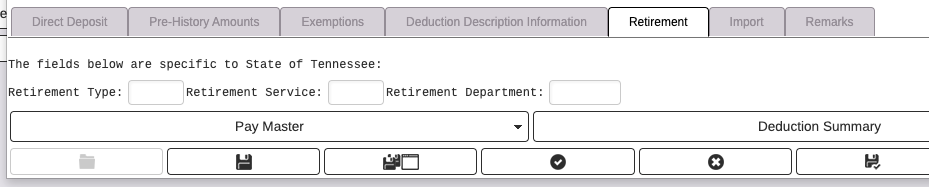
This tab is specific to only a few State customers
Import
If this deduction was set based on data that was imported, this screen would include details about that import.

Remarks
This is a text field for any remarks and/or notes you would like to make.
