
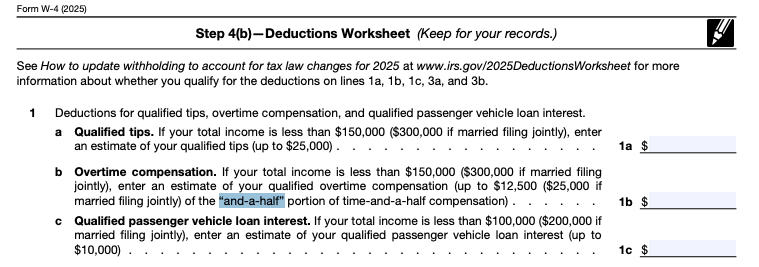
The new OBBBA tax bill includes no tax on Overtime premium retroactive back to January 1, 2025 and is effective through December 31, 2028. Tax will still be withheld during the year, but individuals earning "qualified overtime" will be allowed to take credit on their annual federal tax return of up to $12,500 ($25,000 for joint filers). Please refer to the IRS site for more details. https://www.irs.gov/newsroom/one-big-beautiful-bill-provisions.
The credit that employees are allowed to take is the premium portion of overtime or the .5 or otherwise stated, "and-a-half" portion of the time-and-a-half compensation. The IRS has created a Deductions Worksheet that can be used to assist in determining the overtime compensation for credit. Full document draft is attached to this solution. Be aware that this document may be updated in the future by the IRS so please refer to the IRS for the most current Deduction Worksheet.
Deduction Worksheet Reporting
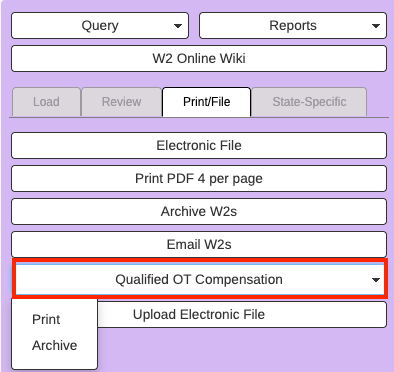
A report titled Qualified OT Compensation is located under HR / Workforce → Payroll W2 Processing → Left task menu Print/File tab. This report will provide a page break option to separate by employee. An archive option is available to archive this report per employee in Personnel Documents. (F.A.S.T./Archive GSV must be set to 2nd or 3rd choice for Archive Style to have the Archive option. If you do not see Archive under your report, please contact RDA).
This document can be uploaded to ESS using the Document Type QUAL OT COMP. Enter Calendar Year on the Resources tab.
Print: Enter Calendar Year on the Resources tab. Check the box labeled, Page Break on Employee to print one page per employee or leave the box unchecked to run the report without employee separation.
The Range tab can be used to range on a specific group of employees, however it's not necessary. The report will include all employees that were paid OVERTIME-ABOVE in the specified year. Click on cogwheel to run report. Please see next section on requirements to include overtime in this report.

Archive: Enter Calendar Year on the Resources tab. No ranging is necessary. This process will archive all reports for each employee in Personnel Documents for the specified year. This process will also create the Document Type QUAL OT COMP. Click on cogwheel to create archives.
 Once process is complete an OK acknowledgement will appear. Click on x at bottom of screen to cancel.

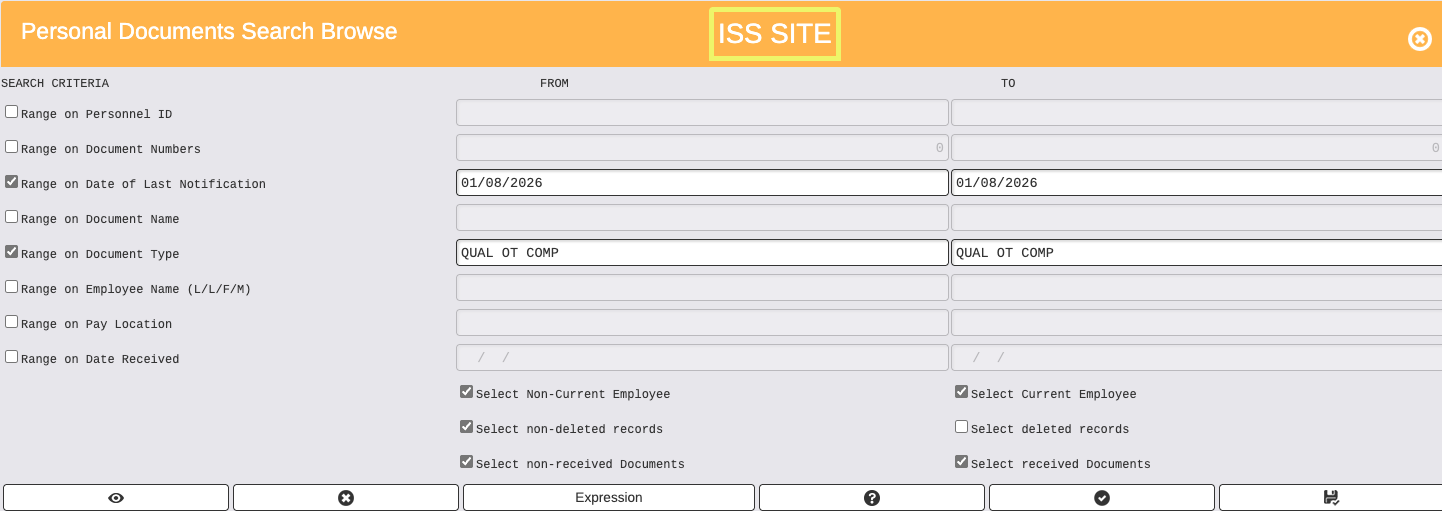
Personnel Documents: To view the overtime report in Personnel Documents to go Personnel → Query → Documents.
Range on Personnel ID if searching for a specific employee otherwise do not use this range.
Range on Date of Last Notification and enter the date when the archive process was completed.
Range on Document Type: QUAL OT COMP
Boxes at bottom should include Non-Current and Current Employees, non-deleted records and non-recieved and received documents.
Click Select at the bottom.
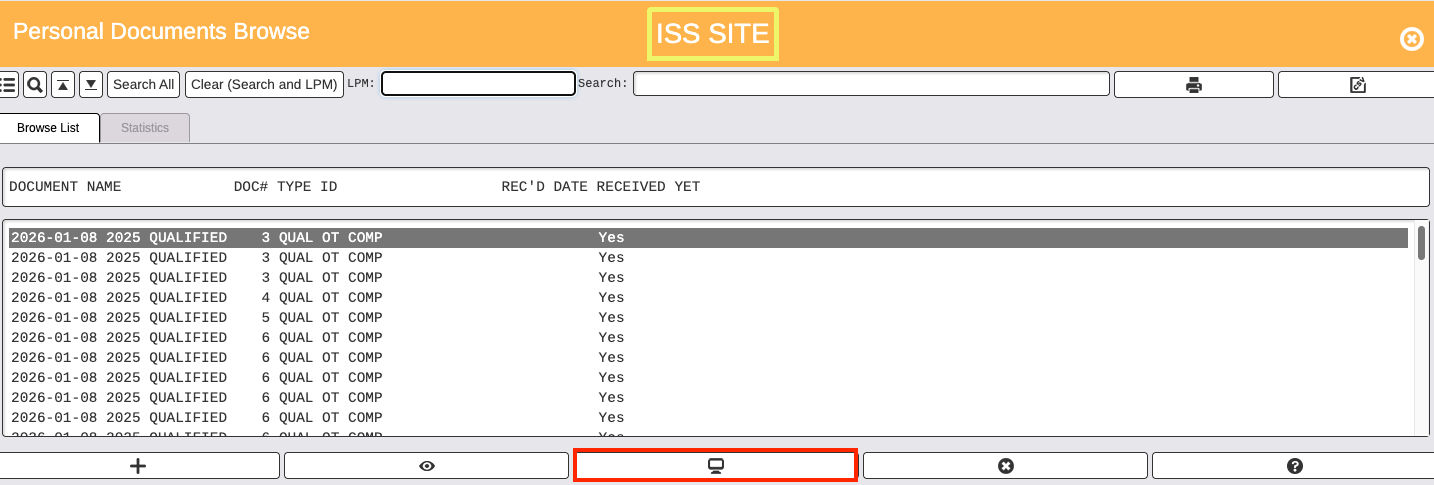
When viewing the Personnel Documents Browse, the monitor icon at the bottom can be used to view the report.
Use the Search field to search for specific employees.
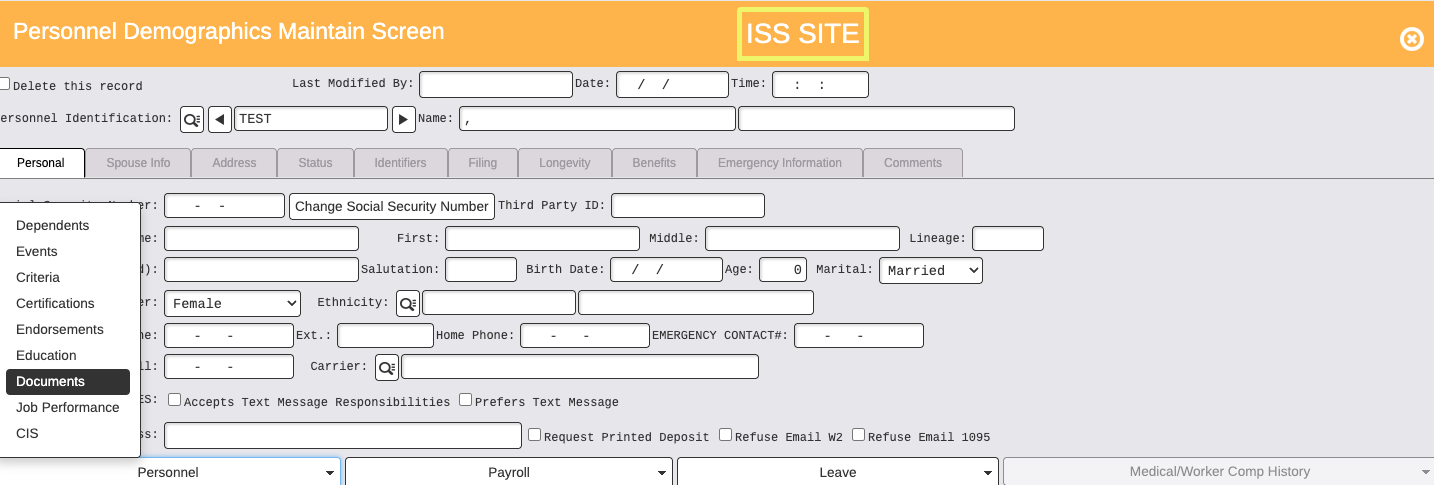
Personnel Documents can also be accessed from Personnel Demographics → Personnel tab at the bottom → Documents.
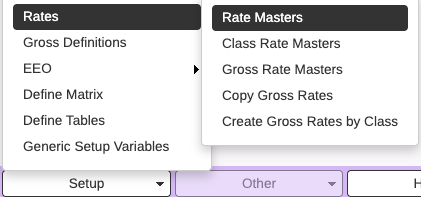
In order to include overtime on this report, the overtime Rate Master must include "ABOVE" in the Rate ID. The standard Rate ID for Overtime at Time and One-Half is OVERTIME-ABOVE. The Rate Masters are located in the Position Tracking module under Setup.
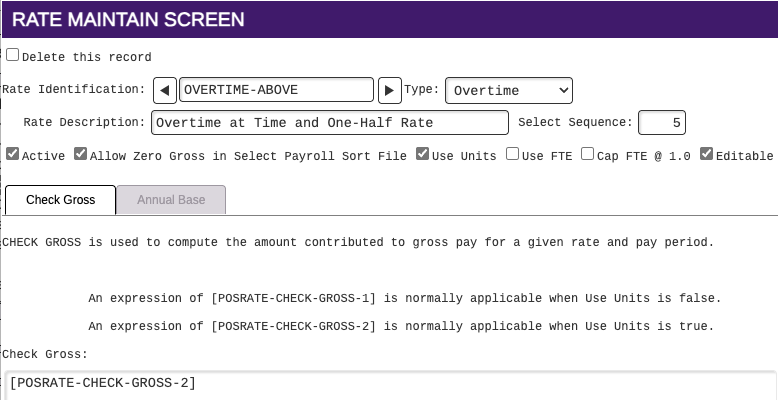
If overtime Rate Masters that pay time and one half, do not include "ABOVE" in the Rate ID, a Change Rate ID process will need to be run to change the Rate ID to include "ABOVE". This does not include OVERTIME-BASE which is paid on base rate.
Please refer to this solution Change Rate ID for Overtime rates that pay at time and one half. https://rdasystems.freshdesk.com/support/solutions/articles/16000226222-change-rate-id.
Please refer to this solution about the Blended Rate https://rdasystems.freshdesk.com/support/solutions/articles/16000234536-blended-overtime-rates