What This Process Does
- Use when a Vendor Withholding Check has been Lost or Destroyed and a Duplicate Check MUST be Reissued.
- The Check Number and Date will be replaced. The report writes the New Check Number and New Check Date to the file, along with the following:
- Original Check Number
- Reissued Check Number
- Reissued By
- Reissue Date
- Reissued Time
It also writes the Original and New Check Numbers to the Bank Account Checks (BNKCK) file.
- A New Check is NOT Automatically Generated as part of this process. To issue a Replacement Check:
To issue a Replacement Check:
- Write a Manual/Live Check
- Use the Print VW Checks Process (refer to the first bullet under “Additional Steps” below)
NOTE: IF the New Check Date is NOT in the same Month as the Original Check Date, and the intention is to "Affect Cash" in the "CURRENT Period":
- Undo the Clear Checks/Transmittals Process for the Original Check BEFORE assigning the New Check Number and New Check Date
- Run the Clear Checks/Transmittals Process AFTER assigning the New Check Number and New Check Date
This ensures accurately "Affected Cash" in Financial Management (otherwise these steps do NOT need to be completed).
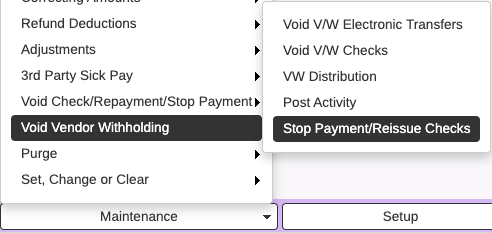
HR Workforce ➝ Payroll Vendor Witholding ➝ Maintenance ➝ Void Vendor Withholding ➝ Stop Payment/Reissue Checks
Enter the fiscal year for the new check as well as the original check number, new check number assigned and new check date. Click on cog to run process.

An audit trail will produce. If correct, cancel out of report and set flags (update).
Go to HR Workforce ➝ Payroll Vendor Withholding ➝ Checks/EFTs tab ➝ Print VW Checks
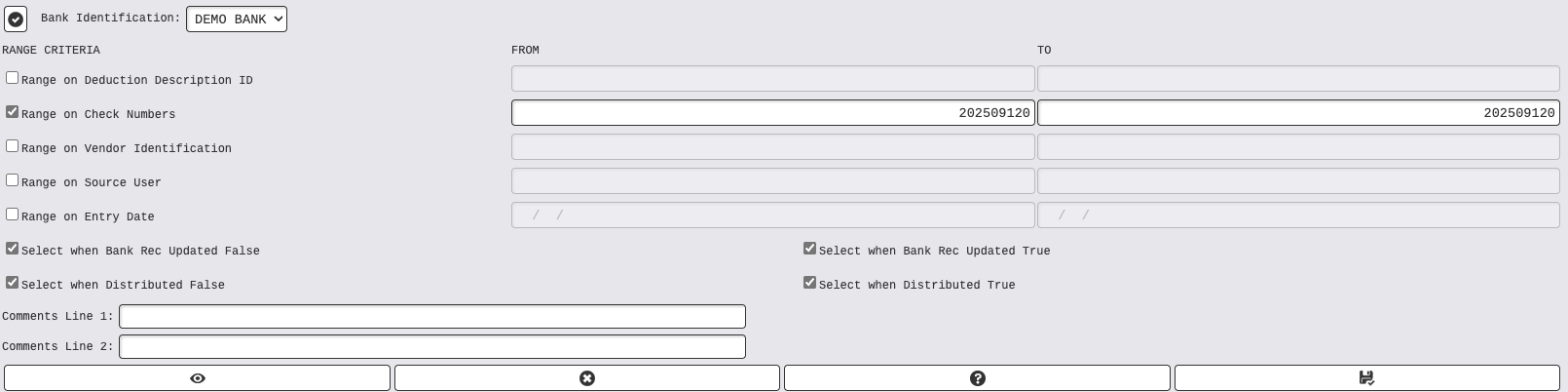
Select Bank ID and range on Check Number. Enter new check number.
Select all boxes at the bottom. Click on Select at the bottom. Enter security code to view and print the check.