
Add a DMV Stop
- Go to the Collections Dashboard
- Set Tax Year dropdown to 2024 (or whatever year you are adding the Stop)
- DMV Stop Table View - this is a list of all your DMV Stops. You can use the Tax Year dropdown to toggle between Tax Years. You can use the Table View column filters/sorts to find records.
- Click Add - to create a new DMV Stop.

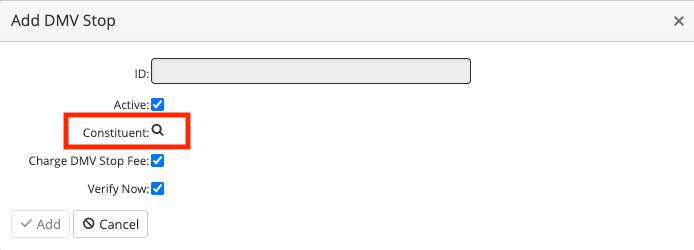
On the Add screen, click the magnifying glass next to Constituent to find the desired Constituent. Start typing in Constituent's name to locate desired Constituent.
- Click the magnifying glass next to Billable to search for vehicle, VIN, or Title Number, to find the desired vehicle.
- All of the $25 DMV Stop Fees were added during the data conversion for 2024 and prior.
- Be sure to uncheck the "Charge DMV Stop Fee" box to avoid creating another $25 fee.
This process will put the DMV Stop "Stop Sign" on the Constituent, indicating that an active DMV Stop is on the Constituent. You will see the Stop sign in Cash Drawer, Constituent Master View, and other places in the system.
Remove a DMV Stop
- Go to the Collections Dashboard
- DMV Stop Workflow
- Click Step 6, then click Create File
This process reviews all Constituents with an Active DMV Stop, and removes the Stop on accounts that have been paid in full since the last time this Remove process was run. You'll want to run this process every day to see if any DMV Stops need to be removed out of the DMV system.
If the Step 6 process finds a DMV Stop that needs to be removed, a file is automatically sent to your downloads folder with a list of SSNs and Title Numbers. You can submit this file to DMV to remove the Stop, or use this file as a list to manually remove the Stops in the DMV system.