
This solution is to explain how to pay blended overtime rates and to be included in the Qualified Overtime Compensation report for the .5 (and a half) premium to be reported properly on W2’s for calendar year 2026.
Blended overtime (or weighted average overtime) is a method for calculating overtime pay when a non-exempt employee works multiple roles at different hourly rates within a single workweek. It calculates a weighted average hourly rate to ensure compliance with the Fair Labor Standards Act (FLSA). Under the Fair Labor Standards Act (FLSA), you cannot simply pick one of the rates to calculate overtime; instead, you must find the weighted average of all rates earned that week to establish the "regular rate of pay".
SET UP BLENDED-ABOVE RATE
STEP 1: Go to Position Tracking - Setup - Rates - Rate Masters
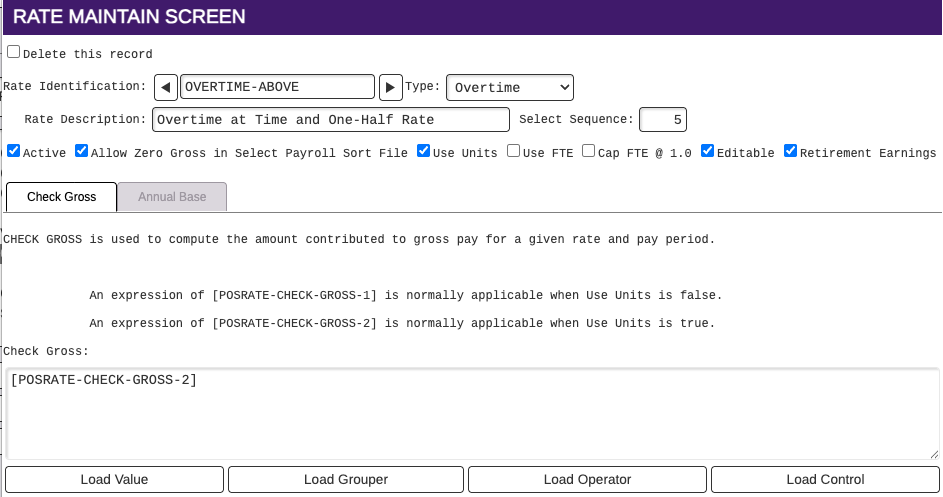
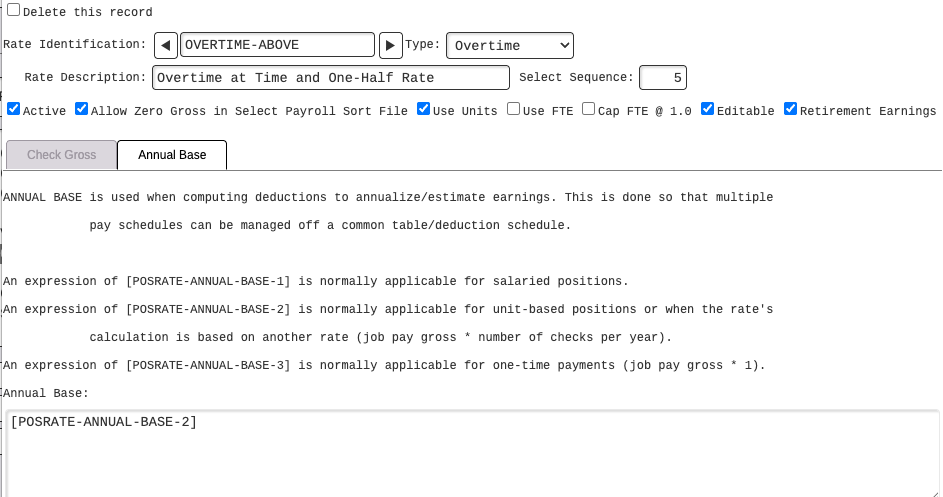
Select the OVERTME-ABOVE rate and on this screen, change the Rate Identification from ‘OVERTIME-ABOVE” to “BLENDED-ABOVE”. Everything else remains the same for both the Check Gross tab and the Annual Base tab. Save the changes.
Stay on the Rate Browse screen and highlight the Rate ID you just created. On the menu at the bottom of the screen, run “Build Payroll Register”. This will allow this Rate ID to show up on your Payroll Register as a separate item with a separate total.
STEP 2: Go to Position Tracking - Setup - Rates - Rate Master
Now that the Rate Master is established for BLENDED-ABOVE, the rate needs to be added to the Gross ID's that this rate should be associated with. The gross rates for OVERTIME-ABOVE can be used as a template to create the gross rates for BLENDED-ABOVE.
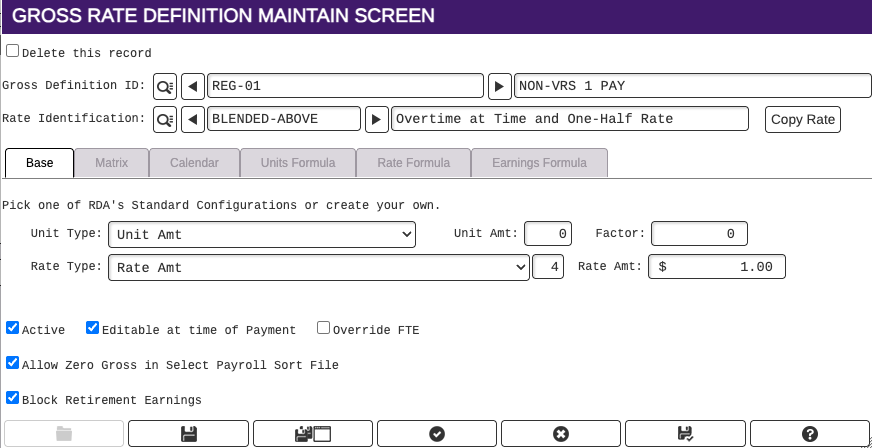
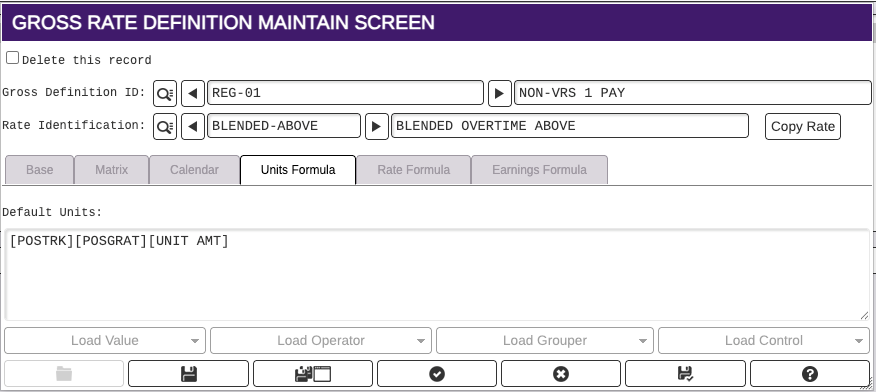
From the Rate Browse screen highlight the new OVERTIME-ABOVE rate and click “Gross Rates” from the bottom. Select a Gross Rate that should be created for BLENDED-ABOVE. Change the Rate Identification field from OVERTIME-ABOVE to BLENDED-ABOVE.
Set the Base tab and Units Formula tab as follows. With regard to the FACTOR field on the base tab, that field setting is unique to every client. Do not change that field….leave it the same as what is set on your OVERTIME-ABOVE Gross Rate setup. No other tabs require any changes.
Save the new BLENDED-ABOVE gross rate and go to STEP 3.
STEP 3: Go to Position Tracking - Setup - Rates - Rate Master
Highlight and select the BLENDED-ABOVE Gross Rate you created. In the right top portion of the screen, select the “Copy Rate” button.
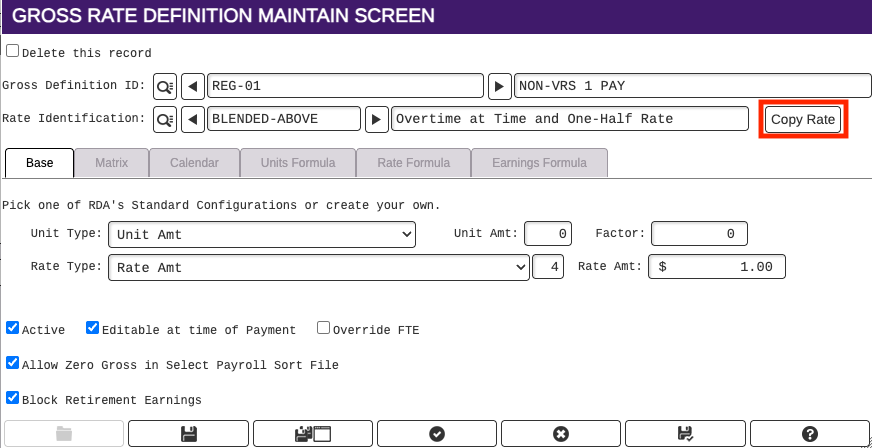
On the screen that comes up, select the next Gross ID that you want to add the BLENDED-ABOVE Rate ID to and run the Select button at the bottom (Gear/Cog).

Continue with the Copy Rate process until you have added the BLENDED-ABOVE rate to all the necessary Gross ID’s.
When you are finished, you should have three Overtime Rate ID’s set up in RDA:
- OVERTIME-BASE should be used for hours worked above contract hours, but less than 40 hours. Hours are paid at base hourly rate.
- OVERTIME-ABOVE should be used for any hours over 40 hours and should be paid at time and a half
- BLENDED-ABOVE should be used for employees who work more than 40 hours in more than one job (generally dual employees). Their base hourly rates are included in their regular jobs and the "and a half" amount should be posted to BLENDED-ABOVE rate ID
The IRS does provide a table to be used for calculating Blended Rates. This is a link to the IRS Blended OT Table:
https://www.dol.gov/sites/dolgov/files/WHD/legacy/files/CoefficientTableWH-134.pdf