
Add Delinquencies to the Statements:
- go to the Transactions Dashboard
- click StatementBatches
- scroll down until you see the record where the Commissioner created the first StatementBatch for the current Tax Year. Be sure to select the correct records. Omitting the first StatementBatches for any tax type (Real Estate, Personal Property, Public Service, etc) will result in errors. Please double-check the selected StatementBatches before moving to next step.
- select this record and all records above it where the Statement Batch Type column is Create Statement
- right-click
- Add Delinquencies to Statements. Leave this screen up until you see a pop-up message indicating that the process is finished. This may take several minutes (15+ min). To prevent being logged out, you must move your mouse every so often on the current tab, or open another tab and continue working in the system. *this process can be run multiple times if needed.
Generate the Printer File:
- go to Statements Table View
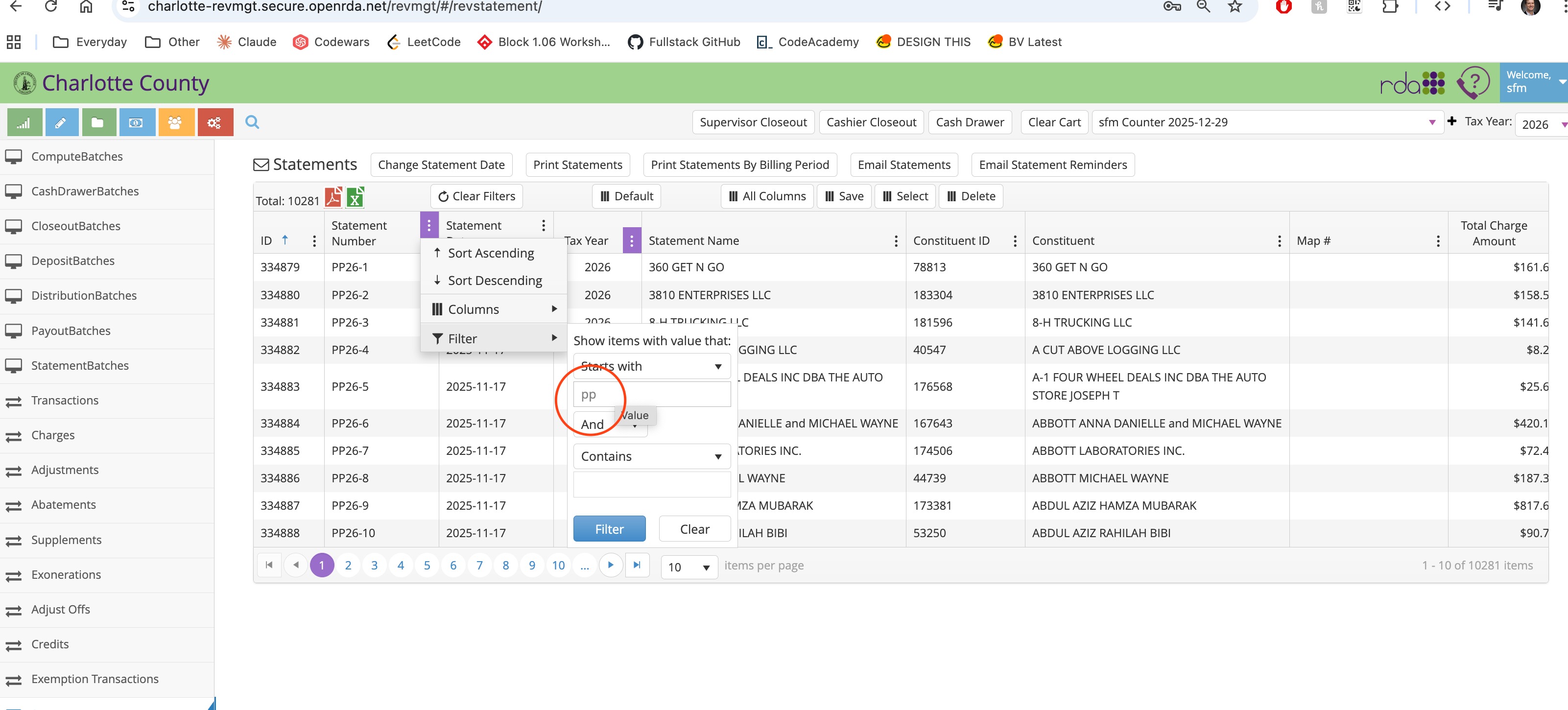
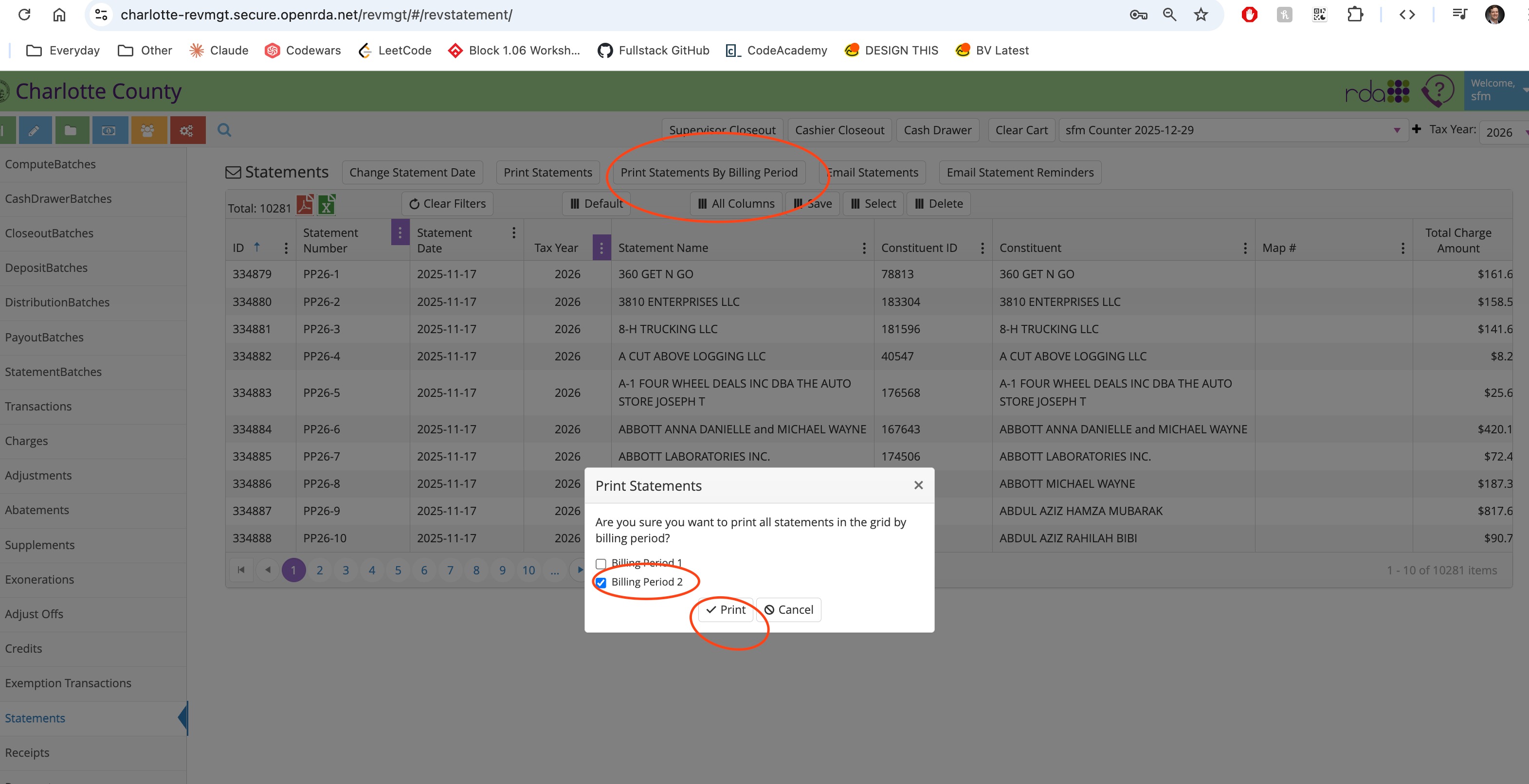
- Set the column filters ("Statement Number: Starts with PP" to run PP file, "Starts with RE" for the RE. file, etc), then run Print Statements By Billing Period. Each file will take a few hours to finish. (Scroll to the right in the Statements TV to see the available columns. So you can select which columns are desired)
- You can close the screen shortly after the process starts. The PDF file will run in the background, will be sent to E-Files when the process finishes.
View the Statement Printer File:
- go to the Reports Dashboard
- click E-Files at the bottom
- you should see the newly-created pdf Statement files at the top of the TV
- select the desired E-File
- right-click
- View E-File
- You can browse this file to review the data. Changes made to this file may not save correctly for the printing company. If you need to make changes to the data, do it in the tax system, then rerun the Statement file. This can be done as many times as needed