
Main Page → Budget Preparation → Other → Import Budgets
Contents
1 What this process does 2 Best Practices 3 Requirements 4 Import a Budget |
What this process does
- This process creates activity for a budget based on the imported amounts.
- This process is optional and is not required for your budget.
- Each time the process is run, activity will be created based on the amount imported.
Best Practices
- Budget ID- The budget ID must exist before running this process.
- Duplicate Processing – Each time the process runs, activity will be created based on the amount imported. The amount imported will be the final budget amount after activity is updated.
- Verify and Update - Always verify and update the activity after each session.
- Negative Amounts- Negative amounts are allowed.
Requirements
- Budget ID – The Budget ID must be created and account codes must be added to the Budget ID. The Budget ID cannot have been updated to Financial Management.
Export Revenue/Expenditure Budget
- Finance → Budget Preparation → Other (at bottom) → Import Budgets Expenditure/Revenue → Export Budget
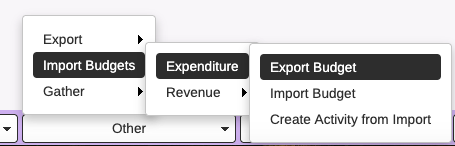
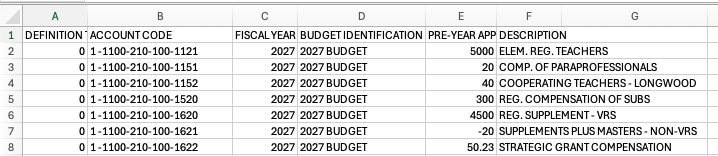
- This process creates the template for the budget import and includes account codes and descriptions.
- The output will be created for the Default Budget Year and Default Budget ID
- Select and Range Tab
- Range as appropriate. Do not range if you want all account codes selected.
- Run the process (cog icon). This will give you the account code import template in .csv format.
- If your budget already contains amounts, the updated amounts will display. Otherwise, zero will display in the appropriation column.
Import Revenue/Expenditure Budget
- Finance → Budget Preparation → Other (at bottom) → Import Budgets (Revenue/Expenditure) →Import Budget
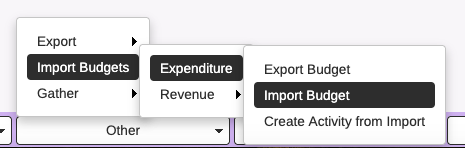
- The import file should be type .csv
- Remove the column for Description from your exported template file and change any amounts to create your import file. The amounts should be what you want your final budget to be. It should NOT be the difference between what is currently budgeted and what you want the final budget to be.
- Copy and paste so that your first 2 lines and the last line in your spreadsheet match.
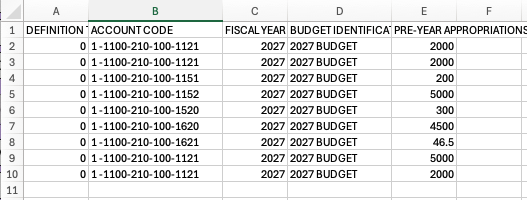
- Browse for your import file. Range as appropriate. Do not range if you want all account codes selected.
- Run the process (cog icon)
Import Revenue/Expenditure Budget
- Finance → Budget Preparation → Other (at bottom) → Import Budgets (Revenue/Expenditure) →Create Activity from Import
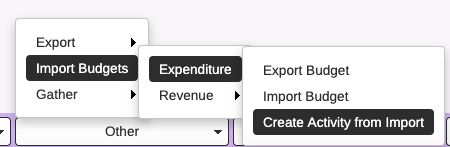
- This process will create activity based on your imported amounts.
- The activity created will be the difference between what is imported and what is already on your updated budget.
Run the Audit Trail and set flags
Update the budget and set flags
- Your final updated budget amount for each account imported, should match the amount imported.
Note
- Always verify and update after each import.
- Always import final budget amounts, NOT the change or difference between current budget amounts and the final amounts.
- Activity will be the difference between current budget amounts and imported amounts
- Example: Imported amount is 500. Current amount on the updated budget is 400. Activity will be created to add 100. After budget is updated with activity, the amount on the updated budget will be 500, the imported amount.
- Remember to run the Audit Trail.
- The updated budget amount will be the amount on the import.