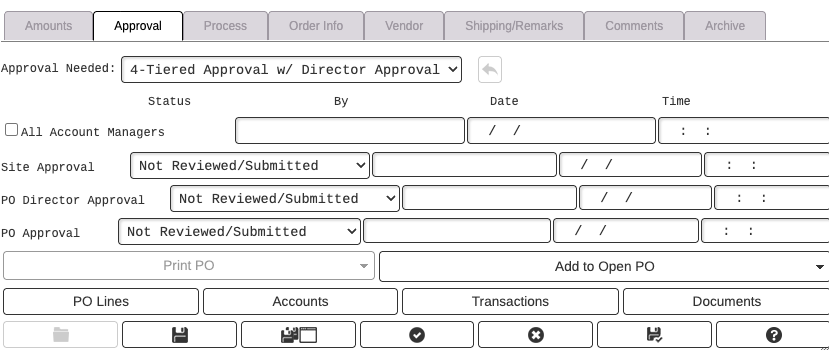
This solution explains set up requirements specifcally for the tiered approval and explains the approval process. This solution does not contain the full setup for POs.
What This Process Does
Allows to set up multiple approvers for a PO. Choices are 2-Tiered, 3-Tiered Approval with Site Approval, and 4-Tiered Approval with Director Approval.
Setup
There are mutliple set up requirements to ensure that the PO tiered approval works as expected.
Security
System Administration ➝ Security ➝ User Profiles
Users that are set up for Site Approval must have a Department, Supervisor, Site ID, and Location ID on the Department/Site tab. The Site ID is the default site when the user adds POs, but actual site approval setup is on the Site itself under Setup. The box that reads, "Able to Approve Purchase Orders" must be checked and an Approval level set.
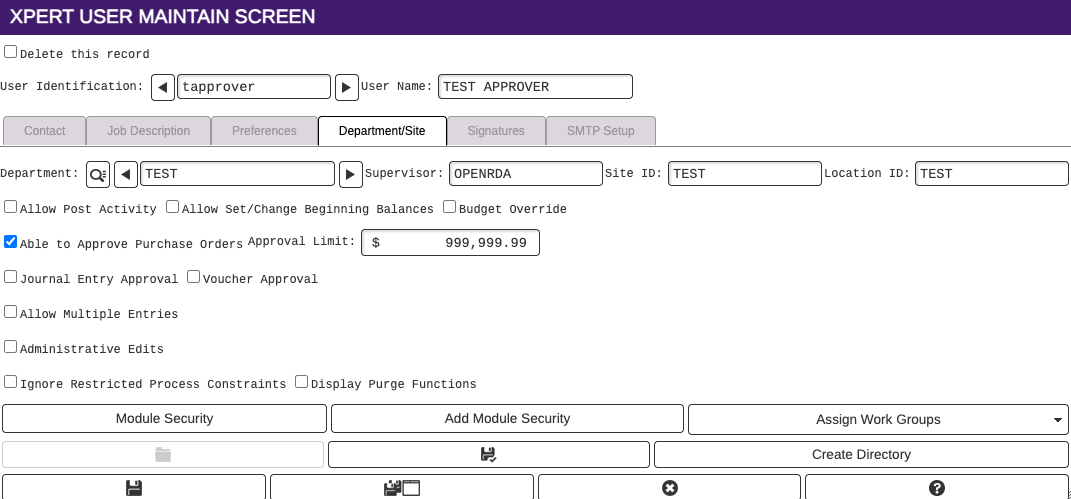
If the user is an Account Manager, please contact RDA to assist in additional set up in security for PURACC (Purchase Order Account). Users that are not approvers, but will be adding POs can either have access to add all POs, or custom security access can be set up to allow for adding POs for specific departments.
Generic Setup Variables
Procurement ➝ Purchase Orders ➝ Setup ➝ Generic Setup Variables
If Site Approval will be used, on the Site tab, the box for Use Site Approval should be selected.

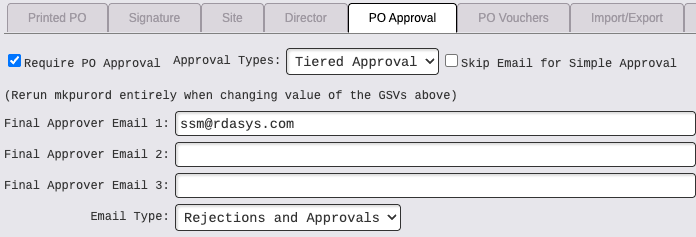
On the PO Approval tab, the box next to Require PO Approval should be checked and Approval Types should be Tiered Approval. A Final Approver Email must be entered.
PO Site Approval
Procurement ➝ Purchase Orders ➝ Setup ➝ PO Sites
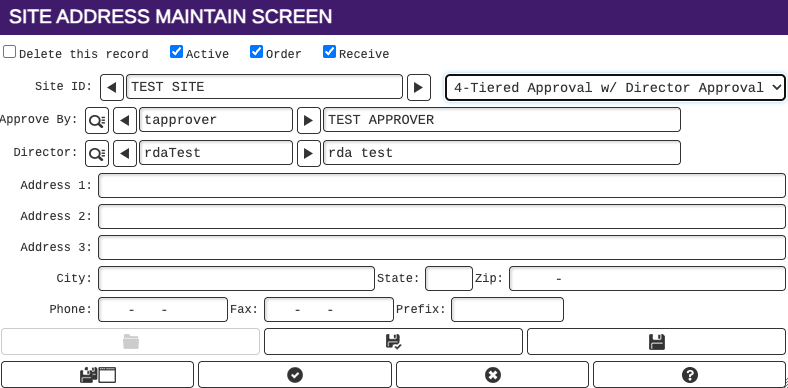
Sites must be set up with a Site Approver and a Director Approver, if Director Approval is needed. Otherwise, Director user is blank. A PO can only be approved for that site by a user that is set on that site as the site approver.
Account Manager Approval
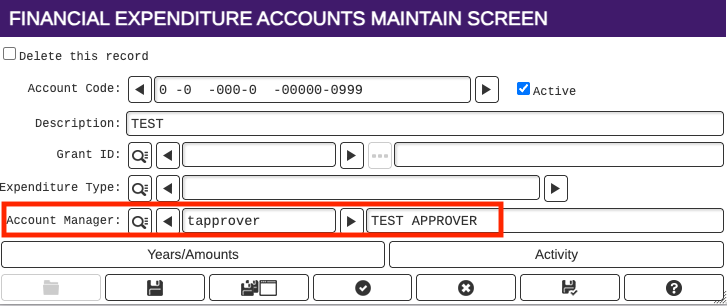
Finance ➝ Financial Management ➝ Query ➝ View an Account Master ➝ Expenditure
Account Managers are set on the Financial Expenditure Accounts Maintain Screen. Only one user can be the Account Manager approver for each account code. This user is the only user that can complete the Account Manager Approval for a PO that contains the account.
Allow Pop Ups
When running the appropriate approval report, pop ups must be allowed in order to complete the process because additional tabs automatically open to allow to set flags/update the approval. Go to the browser settings and search for Privacy or something similar. Look for Permissions and Pop ups and redirects. You can also go to Settings and do a search for Pop ups. Make sure that this setting is not blocked. If pop up blockers are on while running an approval process, a notification will pop up at the top of your browser that looks like a computer monitor, and when you click on the icon, you can select to allow pop ups there.
If a user runs mass approvals and fail to allow pop-ups, they will need to add a helpdesk ticket to get the POs manually approved by RDA.
PO Approval Process
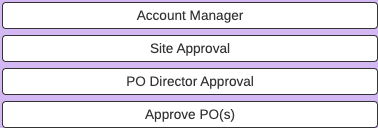
Depending on the number of approval tiers that are set up on the Site, the approval process can be 2, 3 or 4 tiered. Each approver will receive an email notification that the PO is ready to be approved.
2-Tiered Approval
Account Manager approval and then PO Approval for final approval
3-Tiered Approval
Account Manager approval, Site approval, and then PO Approval for final approval
4-Tiered Approval
Account Manager approval, Site approval, Director approval and then PO Approval for final approval
All approval processes are on the left task menu.
Once all approvals are completed all approval sections on the PO will be populated with the user, date and time of approval.